Automate the Boring Stuff with Go, Ch. 1: Introduction
Part of Automate the Boring Stuff with Go, a beginner-friendly guide to programming in Go.
Updated for Go 1.27 in October 2026. What changed: one official installer for every operating system, nothing about GOPATH, and a module from your very first program. New to the terminal? Part 0 comes first.
A developer environment can mean several things, but for you it means getting your laptop or desktop configured to write Go and run Go programs.
When I first wrote this chapter I steered everyone toward a package manager, because the old GOPATH setup tripped people up on day one. That problem is gone. The installer from go.dev does the right thing on every system now, so that is what we use. Package managers still work if you already have one; they get a line each below.
If you’re ever stuck on any code snippet, star or bookmark the GitHub repo Automate the Boring Stuff with Go. It holds the source code for every chapter, and if something does not work on your machine, open an issue there.
So let’s get going.
I. Installing Go
Everything starts at go.dev/dl. The top of that page shows the current release (1.27.2 as I write this) with one download per operating system. Pick yours.
I.a Windows
Download the .msi installer, double-click it, and click Next until it finishes. It adds go to your PATH for you. Open a new PowerShell window afterwards so the new PATH is picked up.
Already using a package manager? winget install GoLang.Go or choco install golang do the same thing.
I.b macOS
Download the .pkg installer. Choose the Apple Silicon build for any Mac made since 2020, Intel otherwise. Double-click it and click Continue until it finishes, then open a new Terminal window.
Already using Homebrew? brew install go works too.
I.c Linux
Download the .tar.gz for your architecture. Remove any previous Go installation by deleting /usr/local/go if it exists, then unpack the archive into /usr/local:
rm -rf /usr/local/go && tar -C /usr/local -xzf go1.27.2.linux-amd64.tar.gz
Use the file name you downloaded; the version in it will move on. You may need sudo. Do not unpack into an existing /usr/local/go tree; that is known to produce broken installations.
Then add Go to your PATH by putting this line in $HOME/.profile (or /etc/profile for every user):
export PATH=$PATH:/usr/local/go/bin
A profile change applies the next time you log in. To use it right away, run source $HOME/.profile or just open a new terminal.
Your distribution’s own golang package also works, but it is often a release or two behind. The book assumes the current release.
I.d Check it
Open a terminal (PowerShell on Windows, Terminal on macOS, whatever you like on Linux) and type:
go version
You should see something like go version go1.27.2 darwin/arm64. If you see “command not found” instead, the usual cause is a terminal window that was open before the install. Close it and open a new one.
II. Installing a code editor
A code editor is the tool developers use every day to make writing code manageable, the way writers use a word processor. There are many; we stick with a free one so every reader can follow along.
Visual Studio Code is free and has the most help online, which matters when you get stuck. (GoLand from JetBrains is what I use for work; it is a paid product and everything in this book works the same there.)
Install VS Code, open it, and go to the Extensions view (the four squares in the left bar, or Ctrl+Shift+X / Cmd+Shift+X). Search for Go and install the one published by the Go Team at Google.
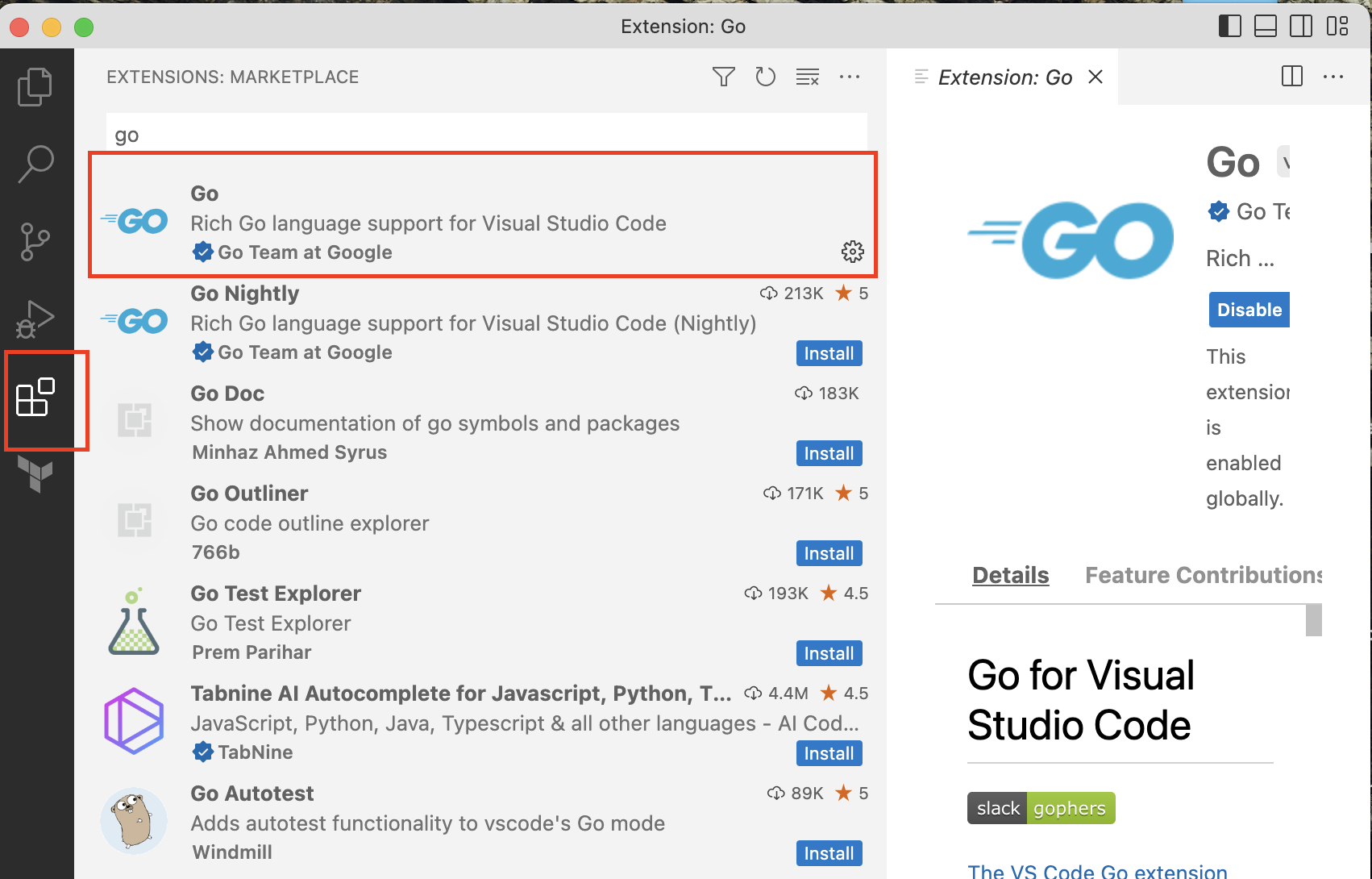
The first time you open a Go file, the extension offers to install its helper tools (gopls and friends). Click Install All. From then on you get syntax highlighting, formatting on save, and the red squiggles that tell you about a mistake before you run anything.
III. Two more things every chapter relies on
III.a git, and the book’s code
The book’s code lives in a git repository. Part 0, chapter 0.3, teaches git from nothing; this is only the install:
- Windows:
winget install Git.Git, or the installer from git-scm.com. Either one also gives you Git Bash, a Unix-style terminal that later chapters assume when they runsh -cor a.shscript. - macOS: open Terminal and type
git --version. If git is missing, macOS offers to install the command line developer tools; click Install. (Orbrew install git.) - Linux:
sudo apt install giton Debian and Ubuntu,sudo dnf install giton Fedora.
Then fetch the code once:
git clone https://github.com/t0ul/automate-the-boring-stuff-with-go.git
cd automate-the-boring-stuff-with-go
go run ./ch1/hello
No git? The green Code button on the repository page has Download ZIP; unzip it and open a terminal in that folder. Chapter 0.4 walks through both.
III.b The folder where go install puts programs
Chapters 2, 15 and 16 install Go tools with go install name@latest. Go puts the resulting program in a bin folder under your Go path, and your terminal does not look there until you tell it to (chapter 0.2 explains why). Do this once:
- macOS and Linux: add
export PATH=$PATH:$(go env GOPATH)/binto~/.zshrc(macOS) or~/.bashrc(Linux), then open a new terminal. - Windows:
go env GOPATHprints a folder, usuallyC:\Users\you\go. AddC:\Users\you\go\binto your PATH: Settings, search “environment variables”, edit Path for your user, New, paste the folder. Open a new PowerShell window.
If a later chapter says “command not found” right after a go install, this is why.
III.c Opening a folder in VS Code from the terminal
The next section types code . to open the current folder in VS Code. On Windows and Linux the installer sets that up. On macOS, open VS Code once, press Cmd+Shift+P, type Shell Command: Install ‘code’ command in PATH, and press Enter. If you would rather not, File, Open Folder does the same thing.
IV. Writing ‘Hello World’
Make a folder for your first program and open it in VS Code:
mkdir hello
cd hello
code .
Create a new file (Ctrl+N / Cmd+N), type the following, and save it as main.go:
package main

import "fmt"

func main() {
	fmt.Println("Hello, world!")
}
Now open the terminal inside VS Code (Ctrl+` or View, Terminal) and type:
go mod init example.com/hello
Note: this creates a module. A module is how Go keeps track of a program and the code it depends on. A dependency is someone else’s code you use to save writing your own; here the only one is fmt, which comes with Go. Don’t worry if that does not fully make sense yet; the next chapter tours the Go toolchain properly.
You now have a go.mod file next to main.go. Open it and you’ll see two lines: the module name you chose, and go 1.27, the Go version you wrote the program with.
Run the program:
go run .
Hello, world!
go run . compiles everything in the current folder and runs it. When you want a program you can hand to someone, build it instead:
go build -o hello .
./hello
On Windows the file is hello.exe and you run it with .\hello.exe. That one file is your whole program; it needs nothing else installed to run.
Conclusion
Wow! You’ve just tackled a lot of topics as a budding developer. If your brain is aching, remember that’s normal. This is a lot to take in for the first time. So take a snack break or a rest to reward yourself before going on to the next chapter.